
AionUi
A free and open-source desktop AI workspace.
INFO
AionUi is a free, local-first, open-source cowork tool that supports Gemini CLI, Claude Code, Codex, OpenCode, Qwen Code, Goose CLI, Auggie, and other AI agents. It provides a full GUI and WebUI remote access experience, making it a strong open-source alternative to Cowork.
Official Links
- Website: https://www.aionui.com
- GitHub repository: https://github.com/iOfficeAI/AionUi
- Downloads: https://github.com/iOfficeAI/AionUi/releases
Core Features
Multi-session chat
- Supports multiple chat sessions with isolated context memory
- Conversation data is stored locally in SQLite for long-term retention
Multi-model support
- Supports major model providers such as Gemini, OpenAI, Claude, and Qwen
- Supports local model deployment solutions such as Ollama and LM Studio
Multi-agent mode
- Can run multiple AI agents at the same time, including Gemini CLI, Claude Code, Codex, OpenCode, Qwen Code, Goose CLI, and Auggie
- Supports unified agent management through MCP
- Supports dedicated Skills configuration for different agents
- Supports custom assistant profiles for personalized workflows
- Each agent can be configured and used independently
File management
- Supports file tree browsing and drag-and-drop uploads
- Supports AI-assisted folder organization and automatic classification
Preview panel
- Supports previewing PDF, Word, Excel, PPT, code, Markdown, images, and more
- Supports real-time file tracking and direct editing for Markdown, code, and HTML
Image generation and editing
- Supports image generation models such as Gemini 2.5 Flash Image Preview, Nano, and Banana
- Supports AI-powered image recognition and editing
Multi-channel access
- Supports WebUI remote access from browsers on multiple devices
- Supports Telegram integration
- Supports Feishu integration
- Stores data locally in SQLite by default, which is suitable for both local and server deployment
OmniRouters Integration
Parameters
| Parameter | Description |
|---|---|
| Provider type | Choose a provider type supported by OmniRouters |
| API key | Get it from OmniRouters: https://omnirouters.com/console/token |
| API base URL | Use your OmniRouters endpoint, for example https://omnirouters.com/v1 |
Setup Steps
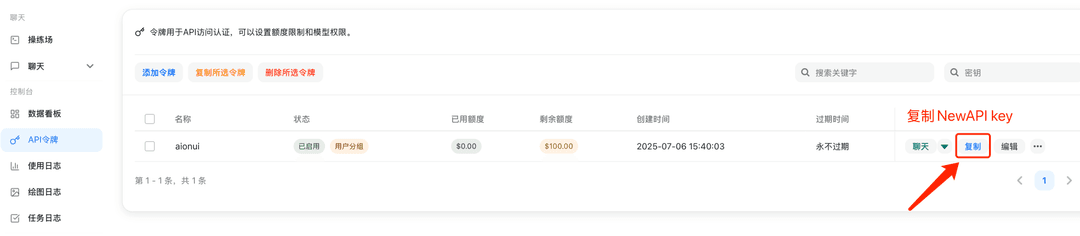
Copy your API key from the OmniRouters token page.
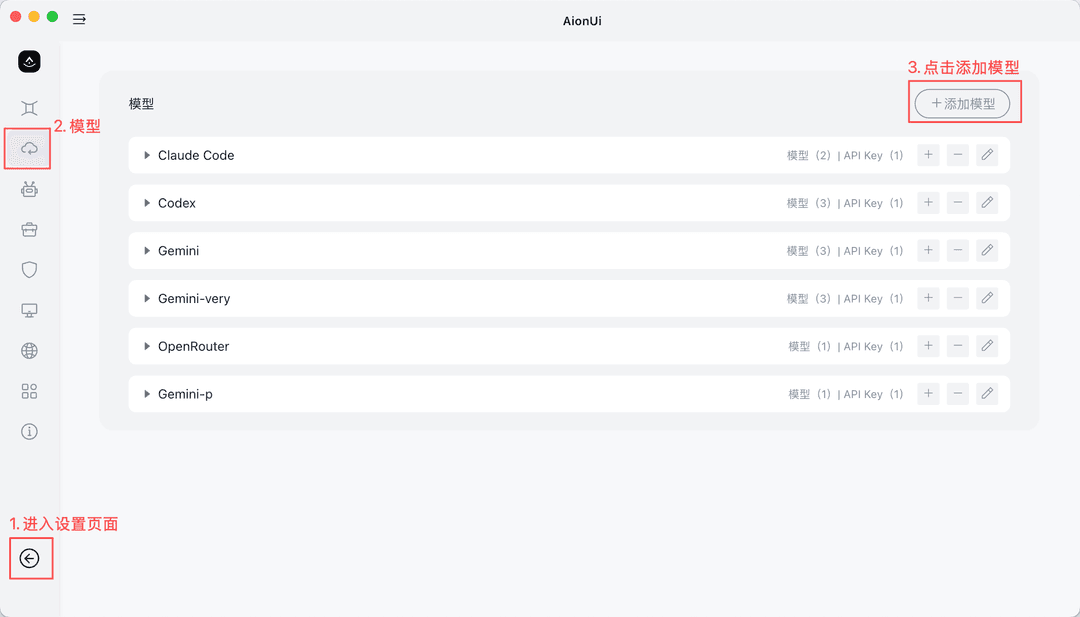
Open the AionUi settings page, go to the model configuration tab, and click "Add Model".
Choose
NewAPIas the provider, then fill in the API base URL and API key.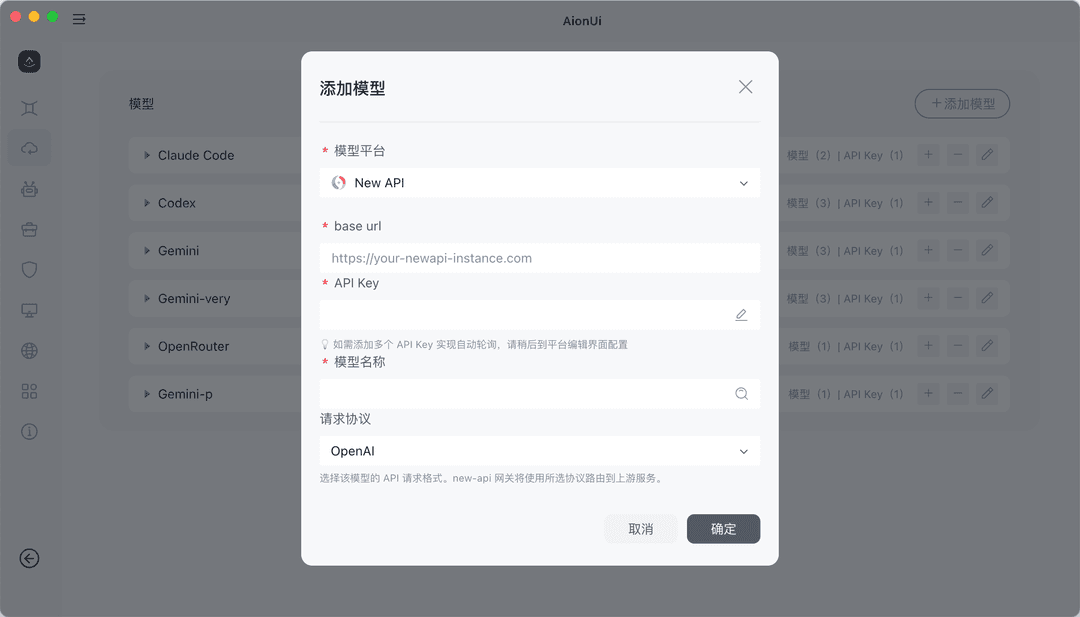
Select the model you want to add from the model list, and make sure the model name matches the configuration in OmniRouters.
Choose the appropriate request protocol and save the configuration.
Return to the chat page and start using the configured OmniRouters model.
Recommendations
- Make sure the OmniRouters base URL ends with
/v1 - Keep the model name consistent with the server-side configuration
- After the initial setup, test connectivity with a simple conversation first
Note
In the current AionUi configuration flow, the provider is still selected as NewAPI, but the endpoint and API key should come from OmniRouters.