
DeepSeek Harness Configuration Guide
This guide shows how to add the OmniRouters custom model API to DeepSeek Harness (DSH) and start a conversation with an available model. First download and install DeepSeek Harness and prepare an OmniRouters API key.
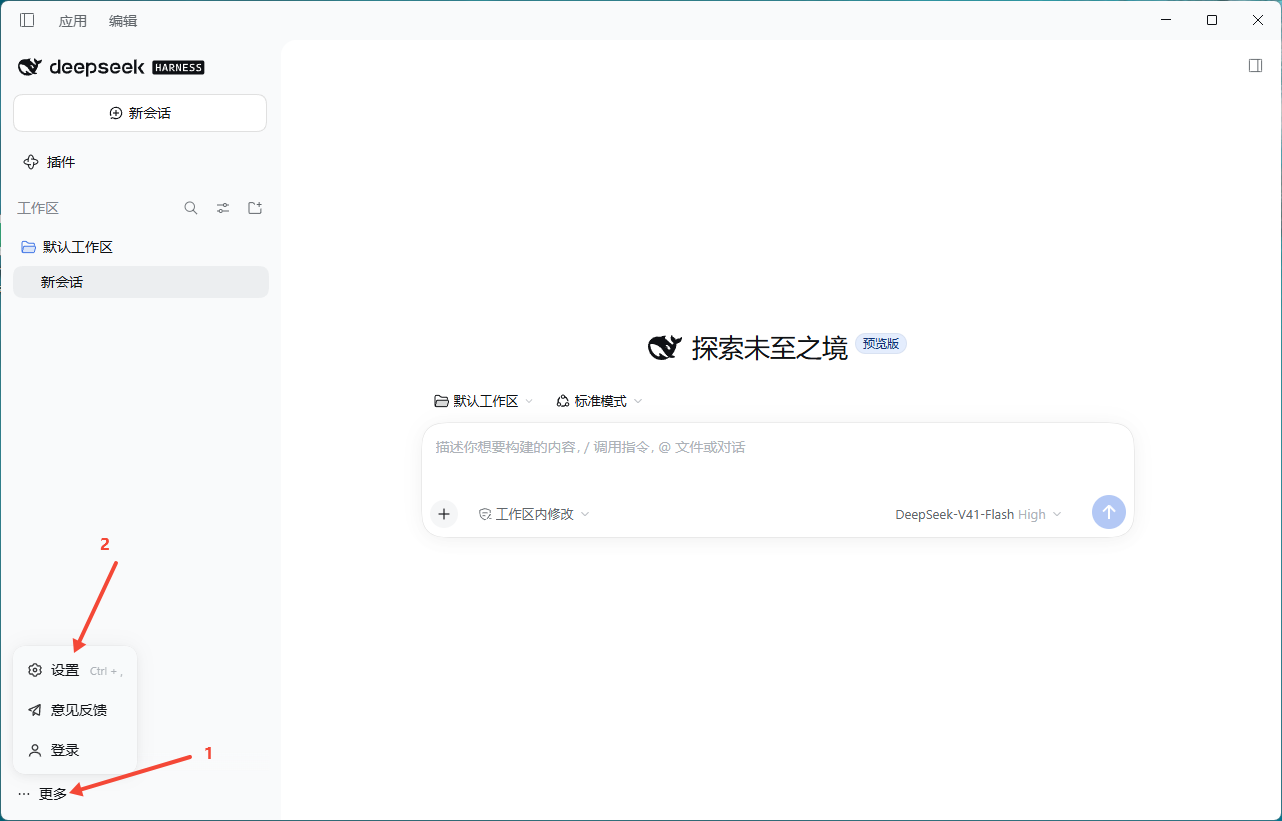
1. Open Settings
Click More in the lower-left corner of DSH, then choose Settings from the menu.
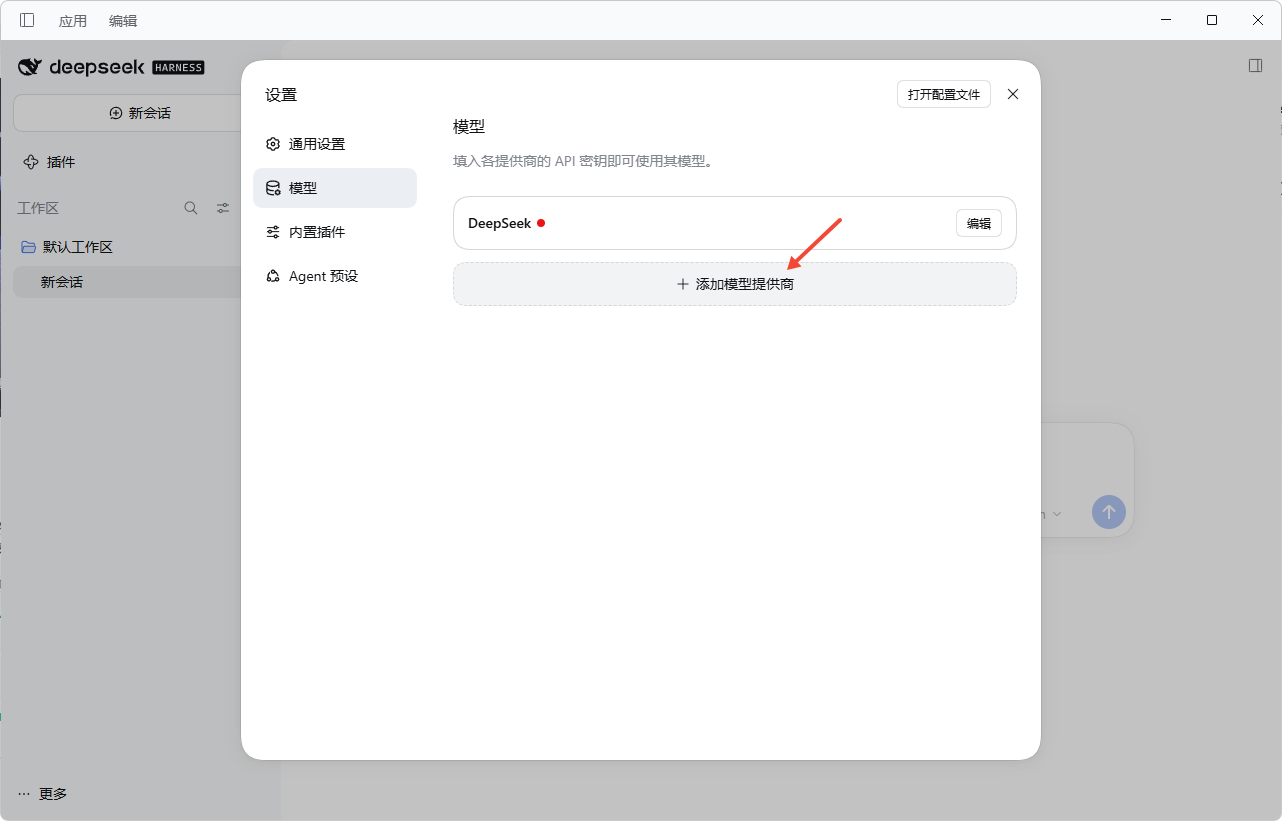
2. Add a model provider
In the Settings window, select Models, then click Add model provider.
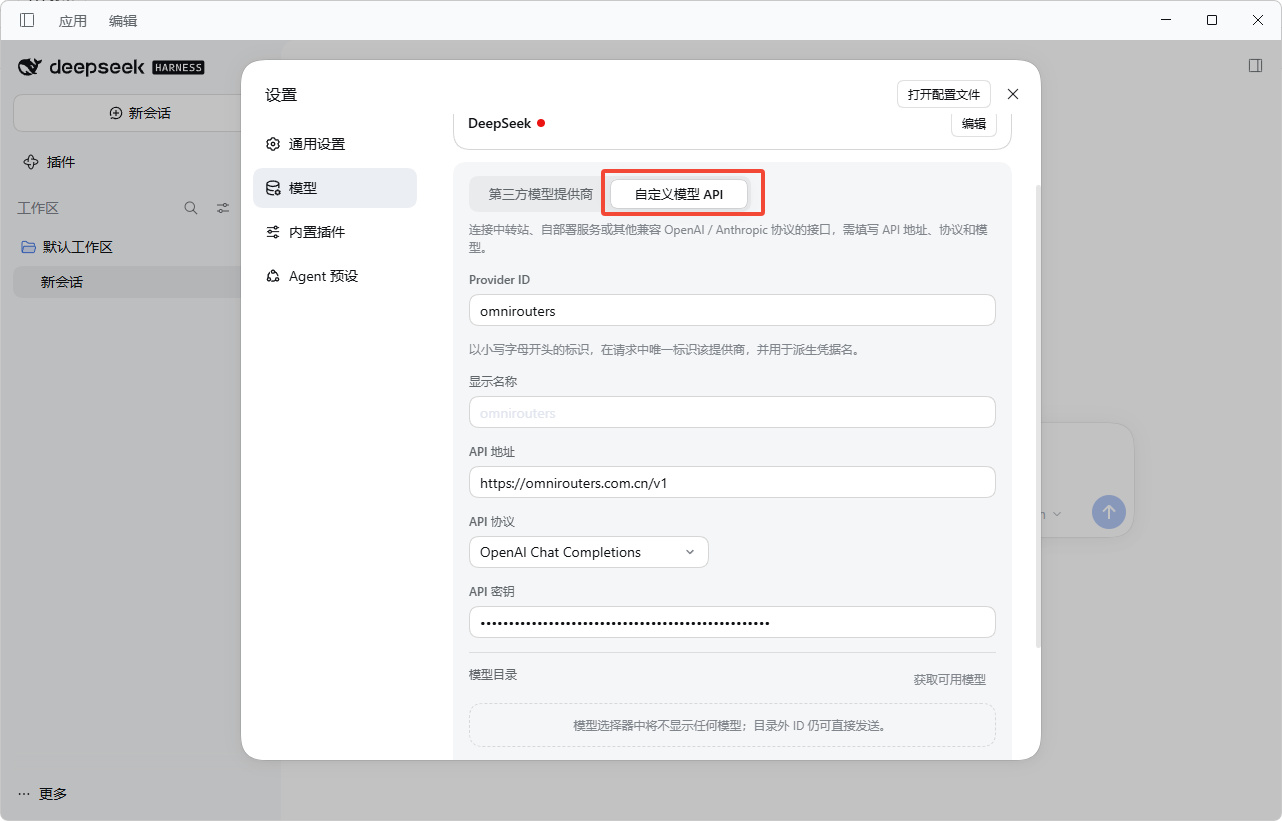
3. Enter the OmniRouters API settings
Choose Custom Model API and fill in the fields as follows:
| Field | Value | Description |
|---|---|---|
| Provider ID | omnirouters | An ASCII identifier for the provider. |
| Display name | OmniRouters | The name shown in the DSH interface; you may customize it. |
| API URL | https://omnirouters.com/v1 | The OmniRouters API base URL. |
| API protocol | OpenAI Chat Completions | Select the OpenAI Chat Completions-compatible protocol. |
| API key | Your OmniRouters API key | Create or copy it from the OmniRouters console. Keep it private. |
Review the settings and click the create/save button at the bottom of the window.
Use
https://omnirouters.com/v1. Do not put your API key in the API URL; enter it only in the API key field.
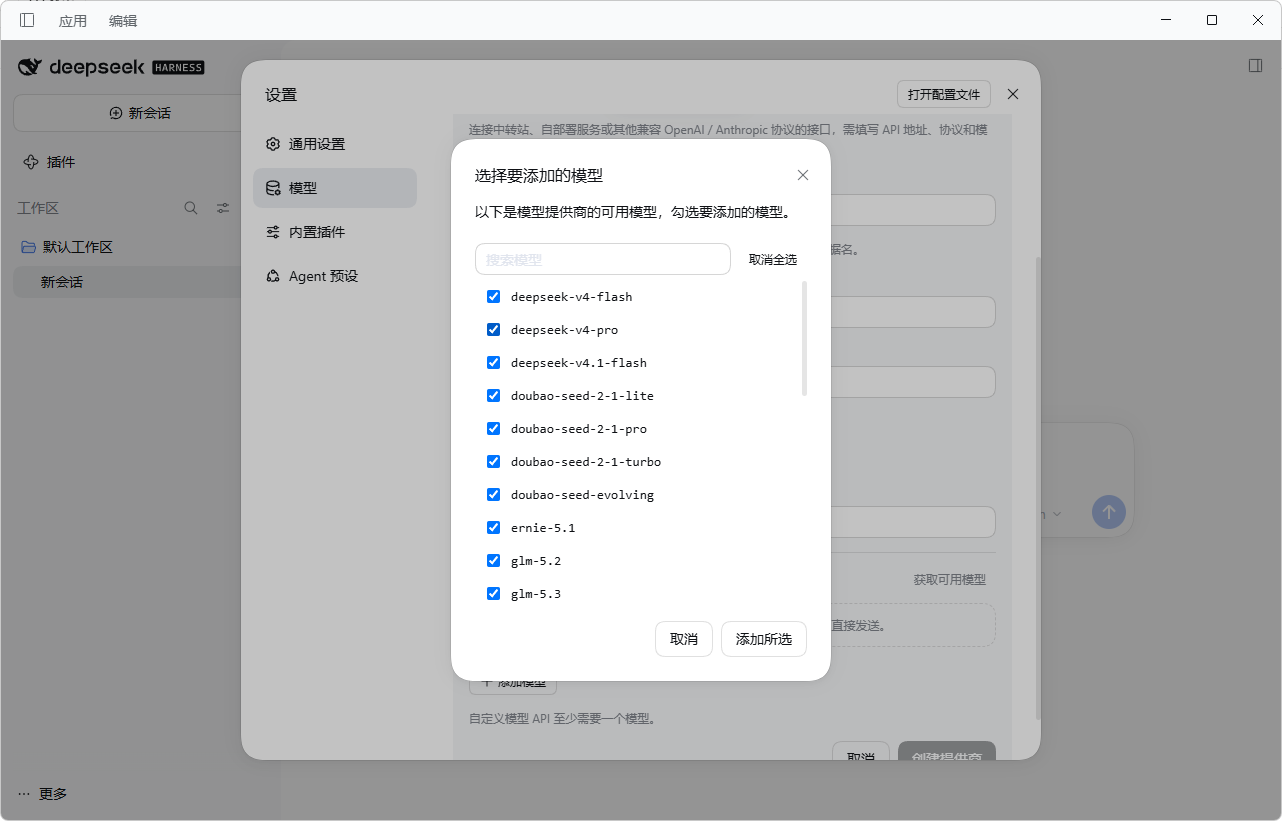
4. Add available models
In the model selection dialog, select the models you plan to use and click Add selected. Add only models currently available to your OmniRouters account.
5. Start a conversation
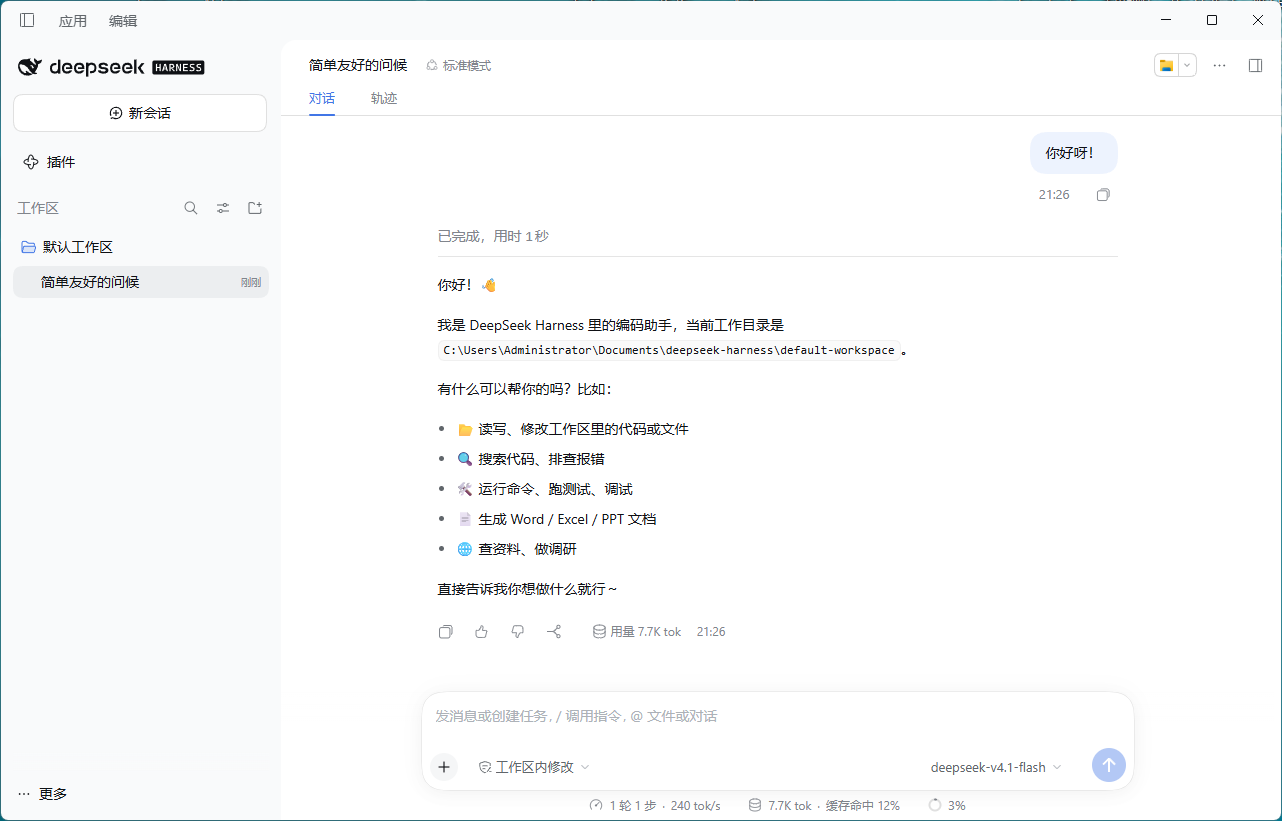
Create a new conversation, select the model you added from the model selector beside the input box, and send a test message. A successful reply confirms that the setup is working.
Troubleshooting
- Authentication fails or returns 401: Check that the API key is correct and active.
- The model is unavailable or not found: Check that its model ID appears in DSH and that the model is enabled for your OmniRouters account.
- Connection fails: Confirm the API URL is
https://omnirouters.com/v1and that your network can reach OmniRouters. - The model list is empty: Recheck the API URL, protocol, and API key, then refresh or add models in the provider settings.