
WorkBuddy Configuration Guide
WorkBuddy is Tencent's general-purpose AI office workspace. This guide shows how to add an OmniRouters custom model to WorkBuddy and start a conversation through the OpenAI Chat Completions-compatible API.
Before you start, download WorkBuddy and prepare an OmniRouters API key and the model ID you want to use.
1. Open model settings
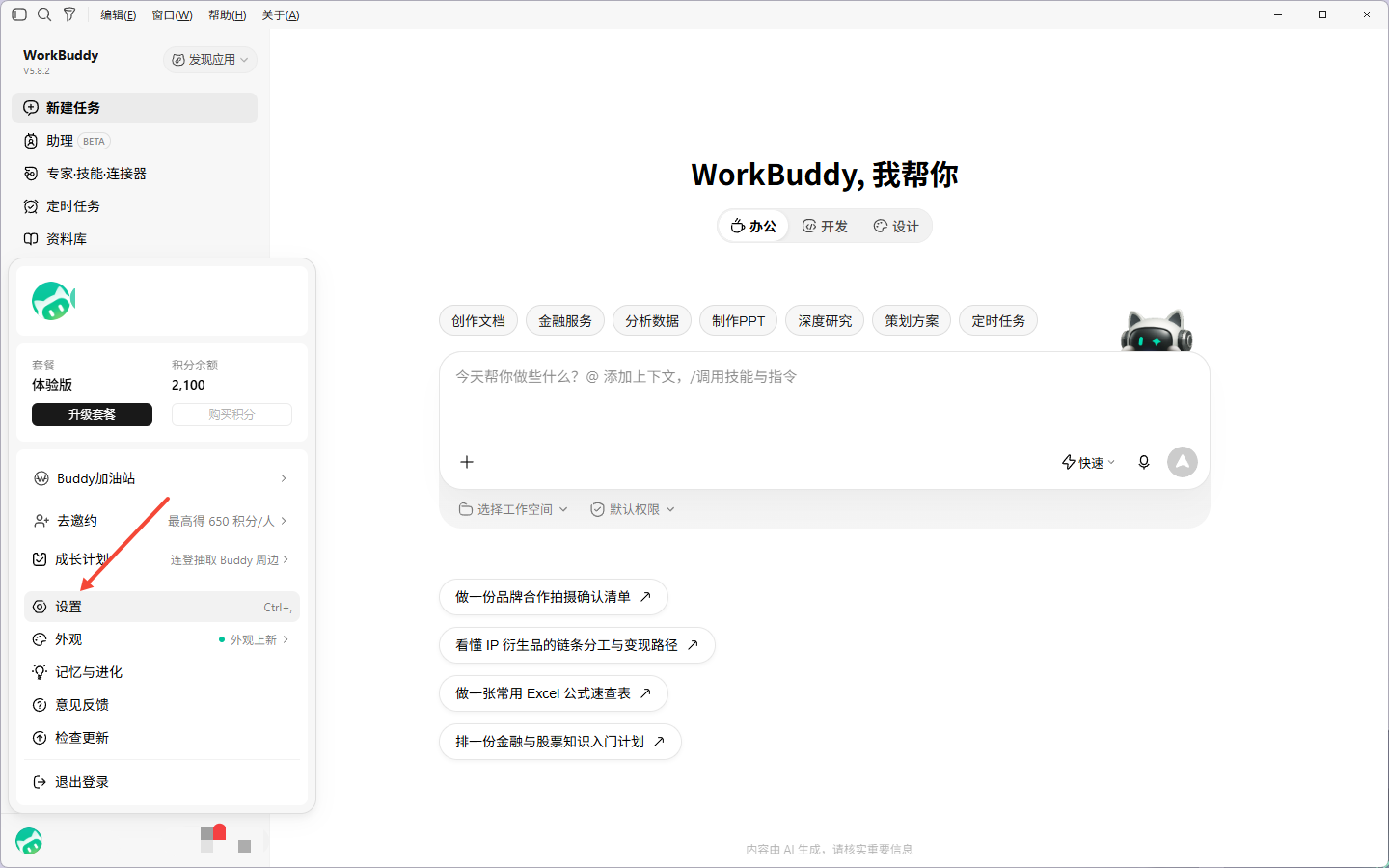
Open WorkBuddy, click the avatar or menu in the lower-left corner, and select Settings.
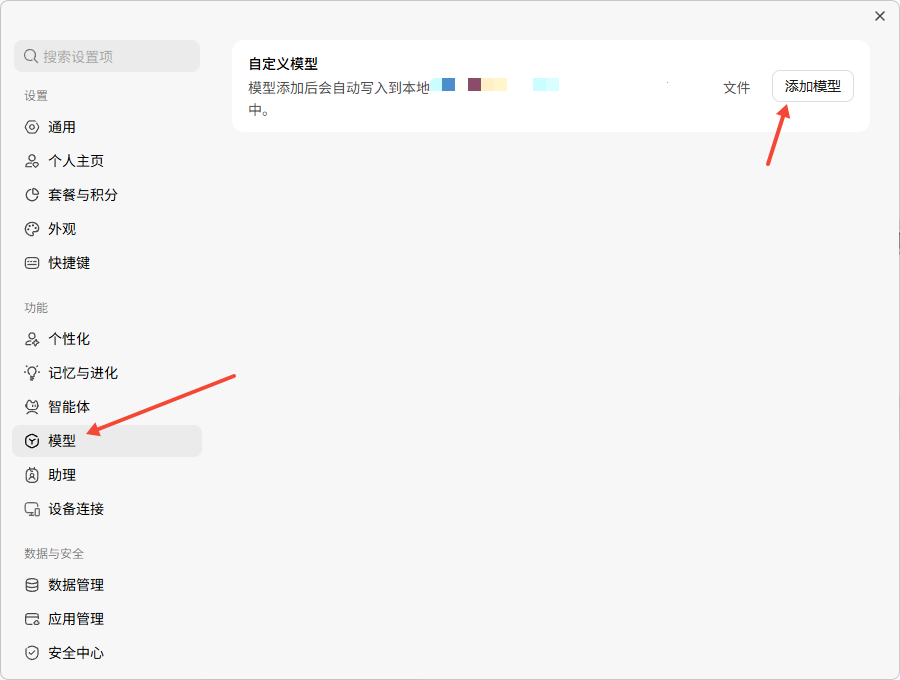
Select Models in the Settings sidebar, then click Add model.
2. Enter the custom model API
Select the Custom provider and fill in the form as follows:
| Field | Value | Description |
|---|---|---|
| Provider | Custom | WorkBuddy uses an OpenAI-compatible API for this provider. |
| Endpoint URL | https://omnirouters.com/v1/chat/completions | WorkBuddy expects the complete Chat Completions endpoint URL. |
| API key | Your OmniRouters API key | Get it from the OmniRouters console and keep it private. |
| Model name | Your OmniRouters model ID | For example, gpt-5.5, claude-sonnet-4-6, or another model enabled for your account. |
Click Test connection. After the connection succeeds, click Save.
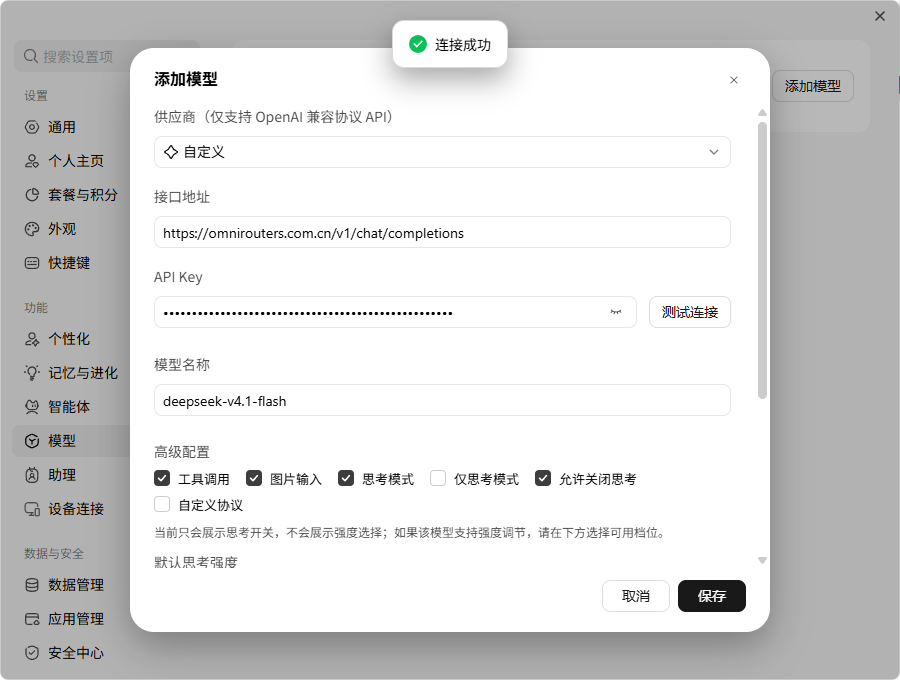
WorkBuddy uses the complete endpoint URL
https://omnirouters.com/v1/chat/completions. If your account uses a dedicated gateway URL, use the actual URL provided for that account.
3. Select the added model
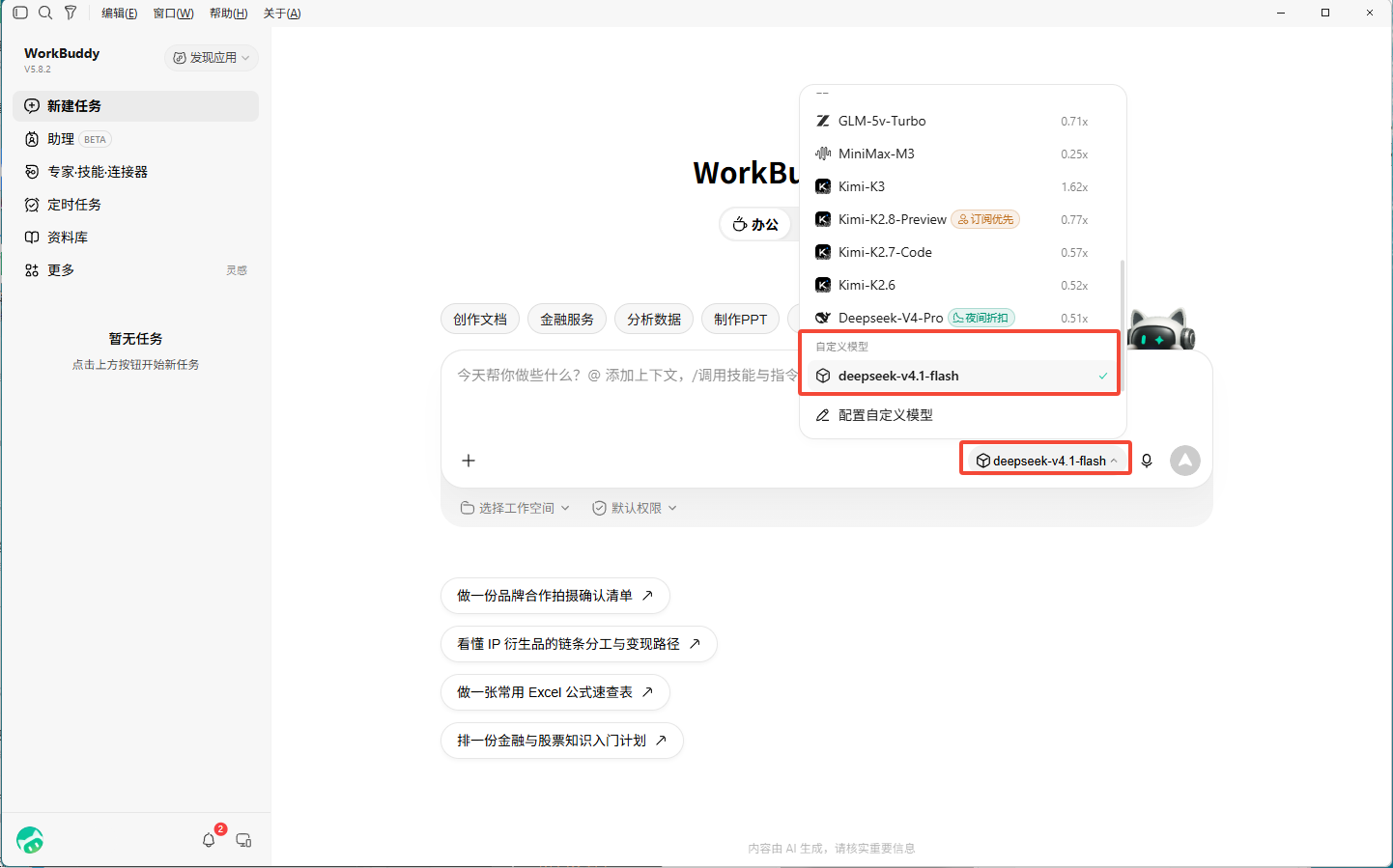
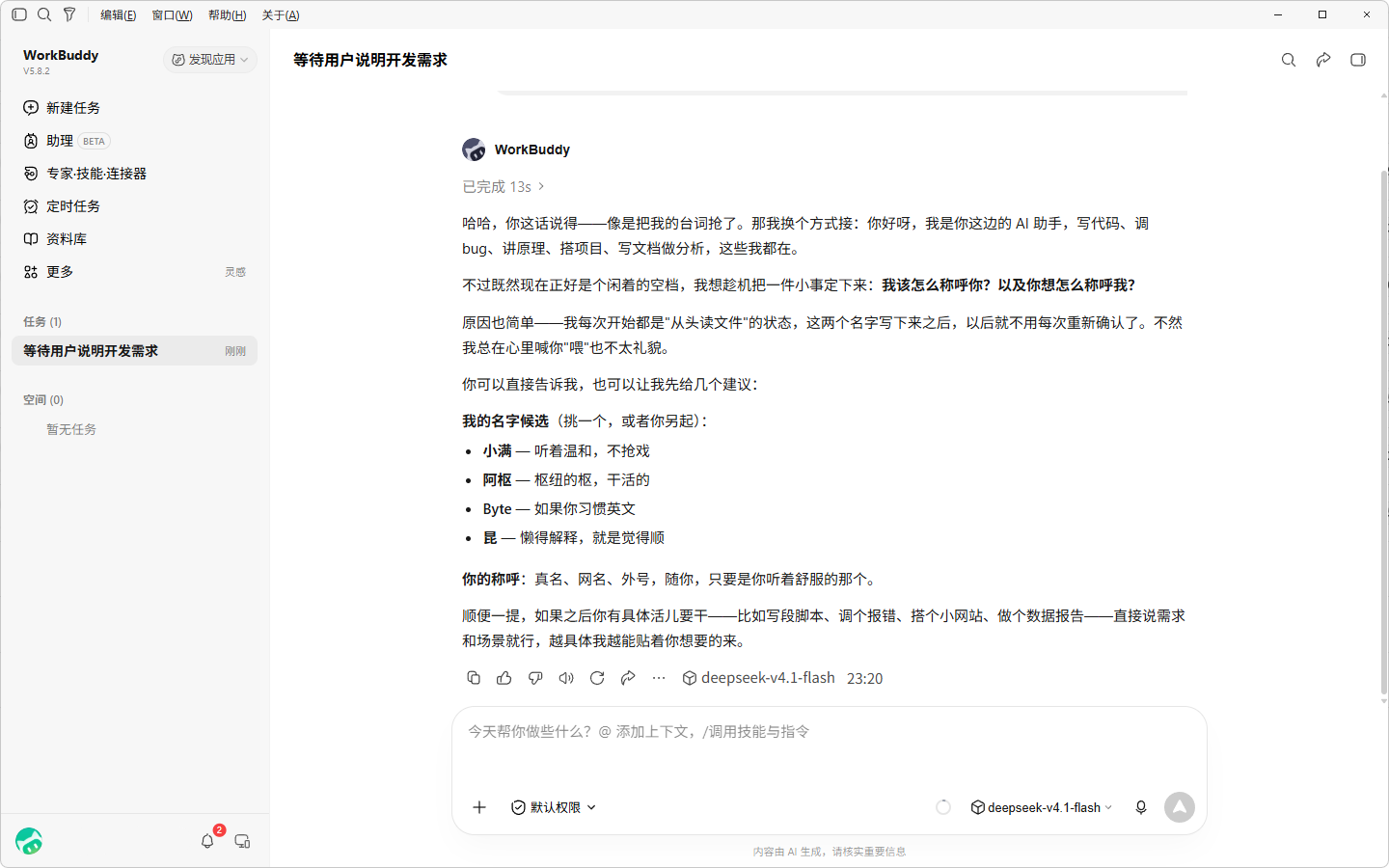
Return to the WorkBuddy home screen and click the model selector at the bottom of the window. Select the saved model in the Custom models section.
4. Send a test message
Send a simple message such as Hello and wait for the response. A successful reply confirms that WorkBuddy is connected to OmniRouters.
Troubleshooting
- The connection test fails or returns 401: Check that the API key is correct and active, and that it was entered in the API key field.
- The model is not found: Check the model ID, capitalization, hyphens, and version, and confirm that the model is enabled for your OmniRouters account.
- The endpoint is invalid: Confirm that WorkBuddy uses the complete URL
https://omnirouters.com/v1/chat/completionsand that the path is not duplicated. - The model is selectable but does not reply: Test the connection again, check the network, and confirm that the selected model supports Chat Completions.